Cinezine
FlowBoard generates the frames; Cinezine is where they become a screening. It's a companion app for the last mile of the pipeline — sequencing, cutting, captioning, and presenting a generated story — and it's local-first: projects live as plain files on your machine, no cloud, no accounts.
Getting a project in
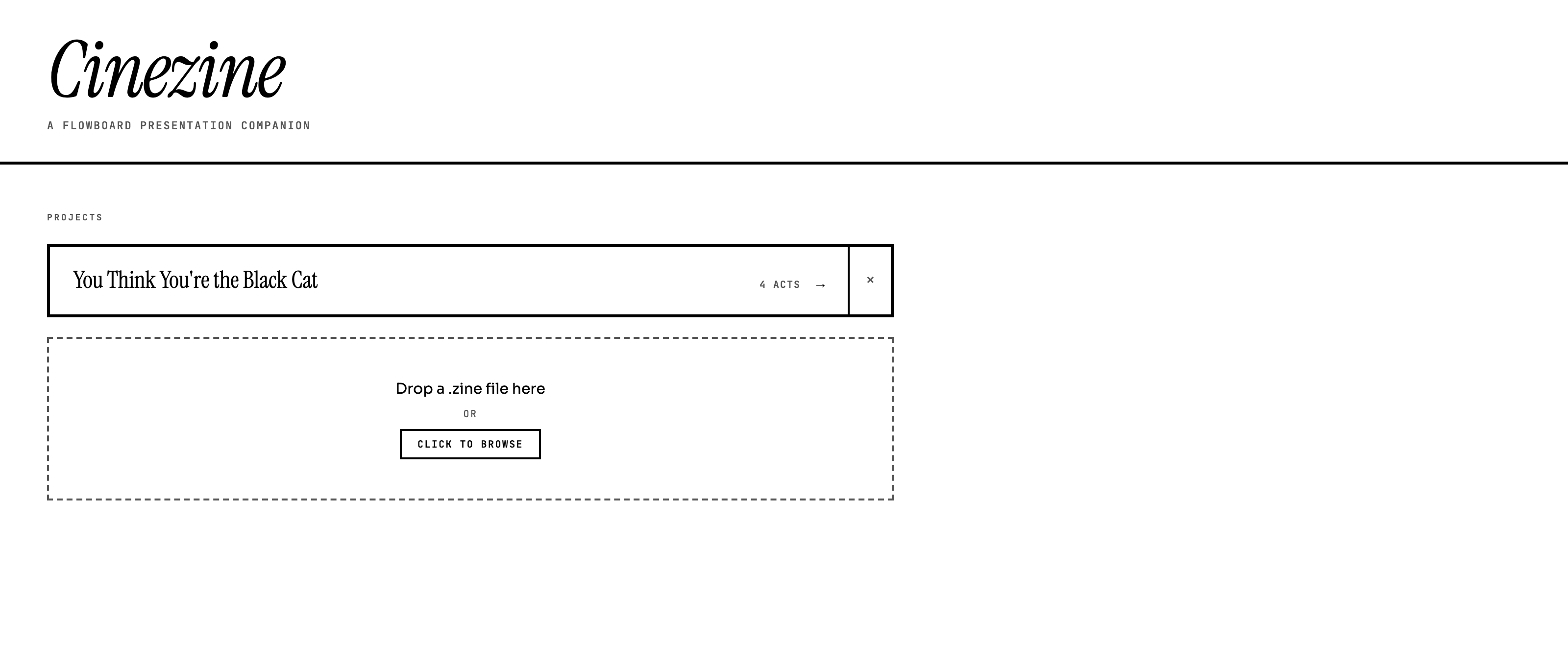
The home screen is a project shelf and a dropzone. Drop a .zine file — a plain zip carrying the project manifest, its images, and any curation and theme already made — and the project lands on the shelf, ready to open. Everything imports to ~/Documents/Cinezine/{project}/ as ordinary files you can back up, sync, or version like anything else.
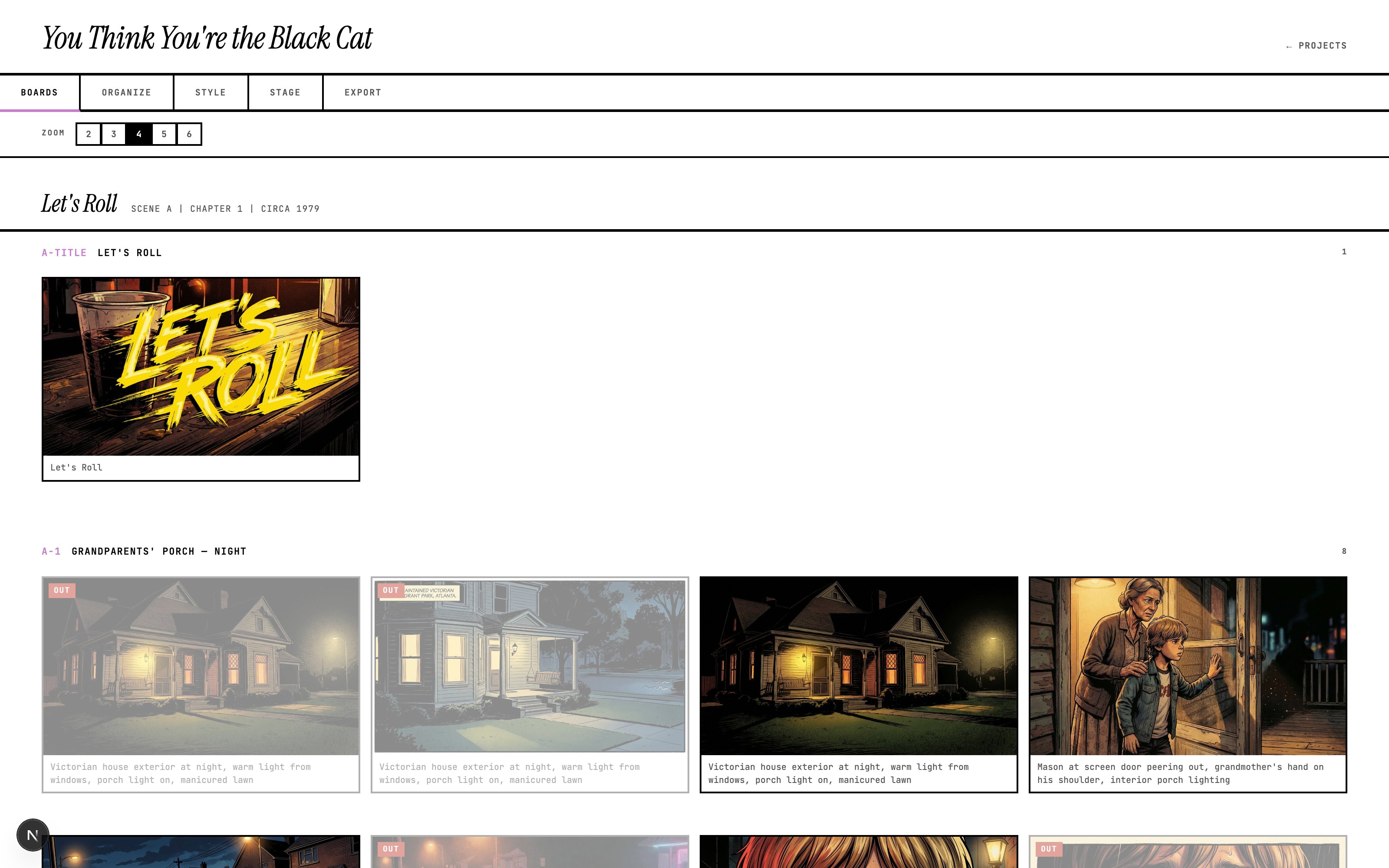
Open a project and a phase bar appears under the title: BOARDS · ORGANIZE · STYLE · STAGE · EXPORT. That's the whole app — five phases, left to right, from raw import to shareable presentation.
Boards — the cutting room
Boards is the primary workspace: every image in the project, grouped by scene under its act, each card wearing its caption. The zoom control sets the grid at 2–6 columns — wide for a bird's-eye pass, tight for reading captions.
The edit moves are all one gesture each:
- Cut or keep — hover a card and press X. Cut images dim and wear an OUT badge; they stay in the grid but disappear from playback and export.
- Reorder — drag a card to a new position within its scene.
- Move between scenes — drag a card onto another scene's Move here → zone; the image relocates, and the change survives export.
- Rewrite a caption — double-click it and type. Enter saves, Shift+Enter breaks a line, Escape backs out.
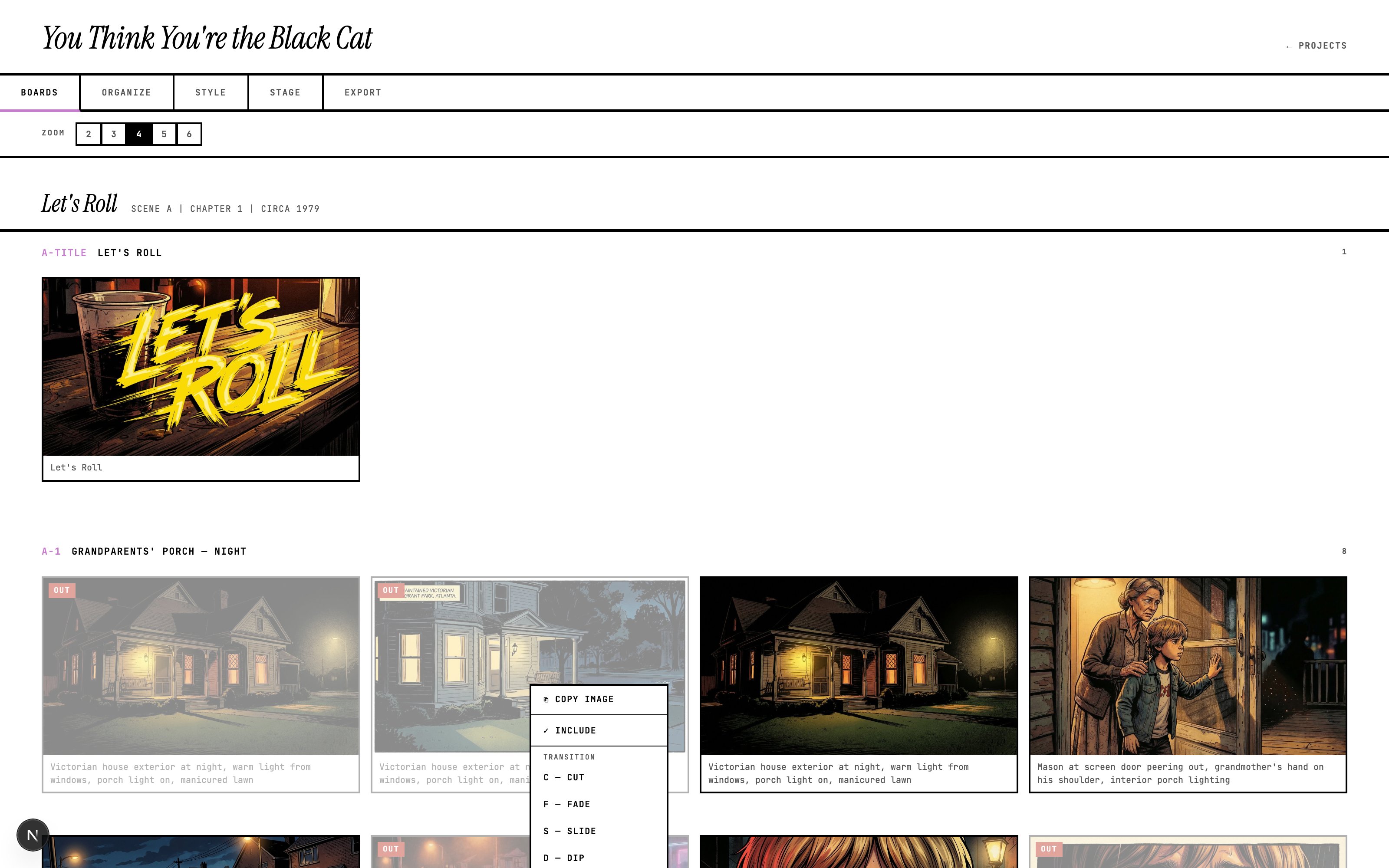
- Right-click for the rest: copy the image to the clipboard, toggle include/exclude, or set a per-image transition override.
Every change saves the moment you make it — no save button, no dirty state. And it's all non-destructive: edits live in a curation.json beside the manifest, a layer of intent on top of untouched source data.
Organize — scene order
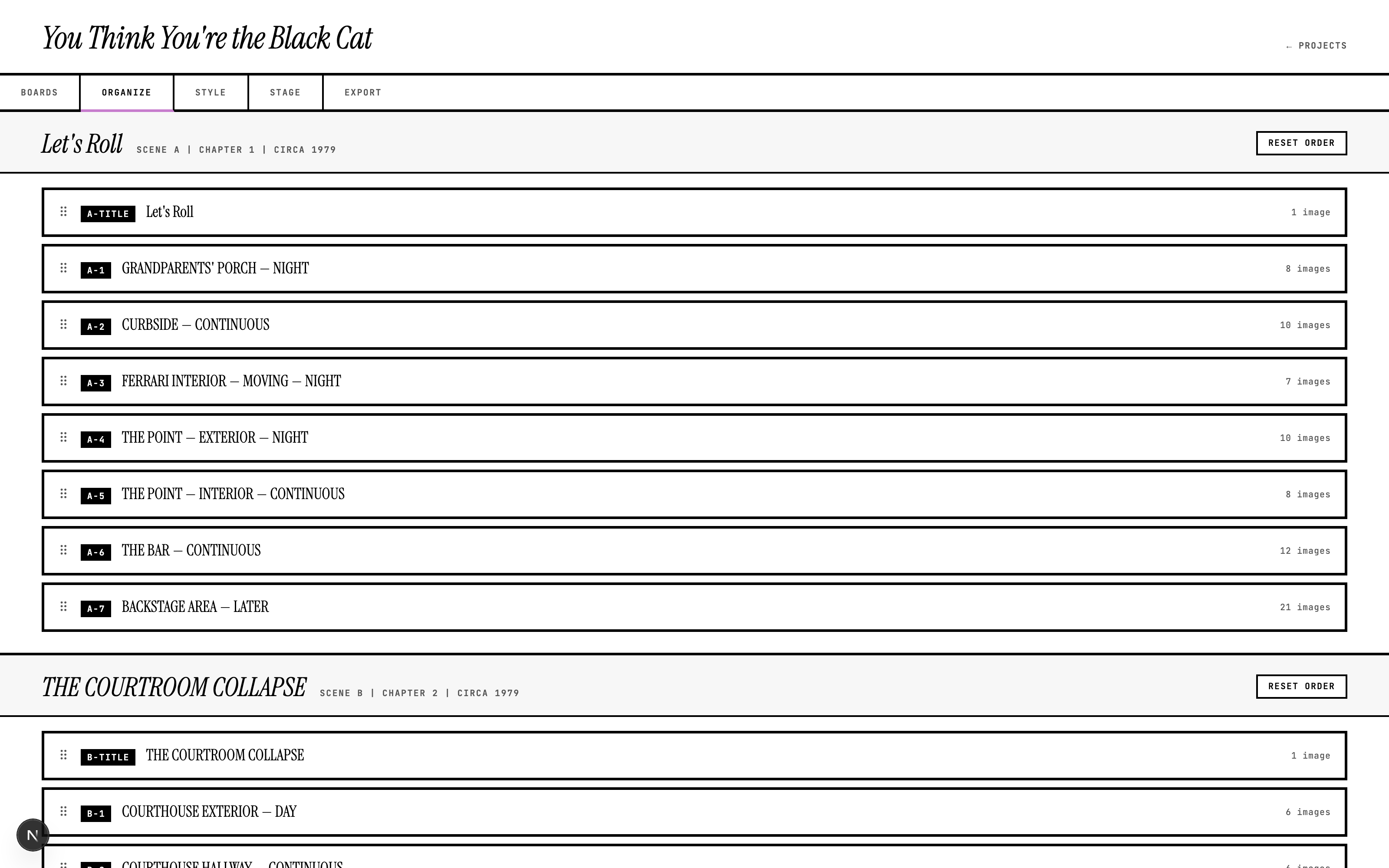
One job, done plainly: drag scenes up and down within each act. Boards and Stage both follow the order set here, and Reset Order puts an act back the way it arrived.
Style — the look
Four theme presets — Brutalist, Editorial, Minimal, Noir — each defining ink and paper colors, an accent, and a border weight. From a preset, tune: ink and paper pickers (with a ⇄ swap for instant dark mode), ten curated accent swatches plus a custom picker, border weight from thin to heavy, and six font pairings — serif, sans, and mono chosen together, previewed live.
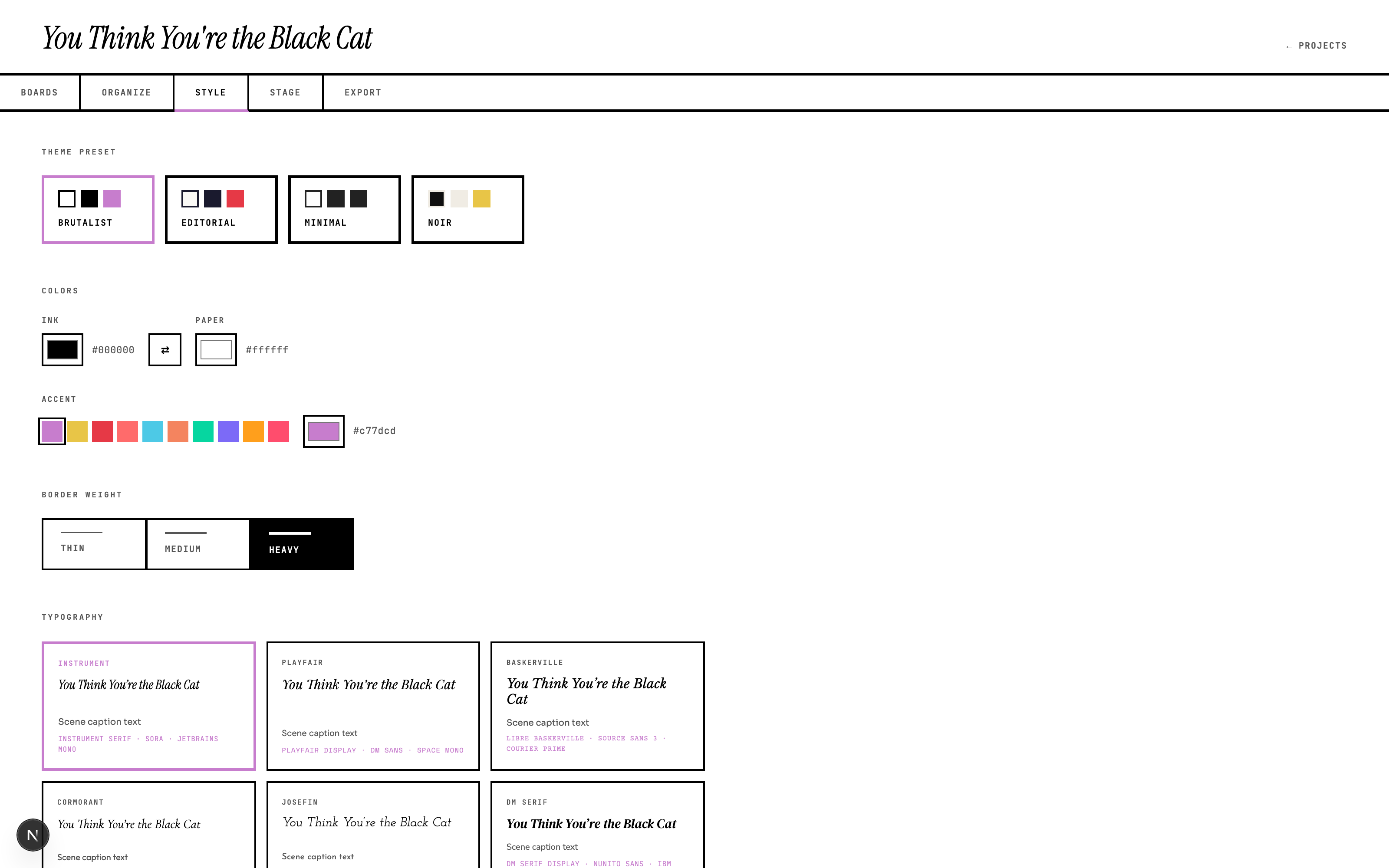
The style page previews changes live; the project header and nav pick them up on the next reload.
Stage — the screening
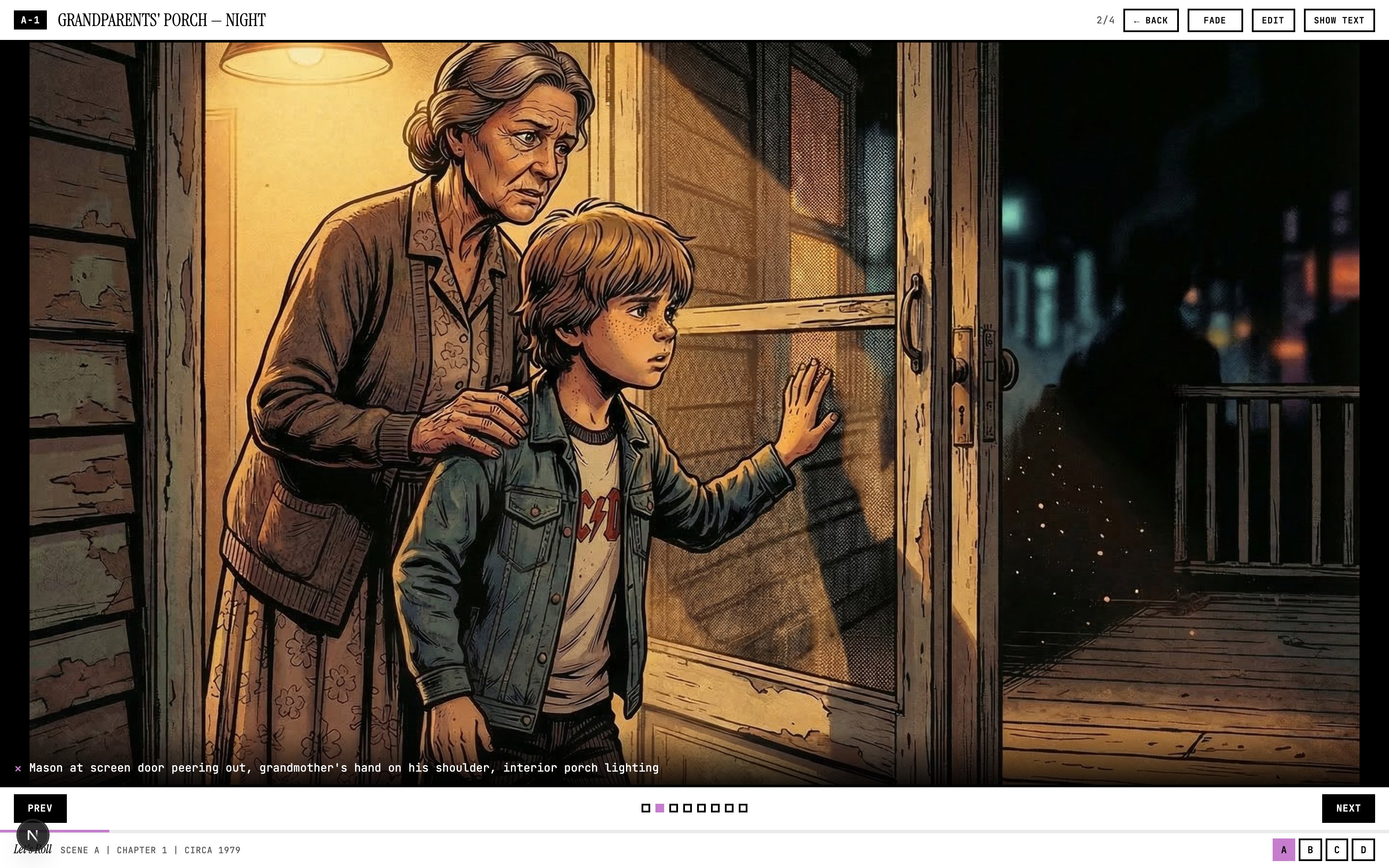
Stage takes over the window: one image at a time, its caption at the bottom-left (the small toggle beside it hides captions entirely), scene dots and a progress bar along the bottom, act buttons in the corner to jump chapters without leaving the show. Arrow keys step through it — right/left through moments, up/down through scenes.
Transitions come in the same four flavors as Boards — Cut, Fade, Slide, Dip — with a global default in the header dropdown and the per-image overrides you set in Boards (or here) taking precedence.
Two panels slide in over the show:
- E opens the filmstrip — the current act as thumbnails down the right edge. Drag to reorder, click the checkbox to cut or keep, tap a C/F/S/D pill to override a transition. It's Boards' toolkit, available mid-presentation.
- T opens the script panel — the screenplay prose for the scene on screen, so the text and the picture stay in one view.
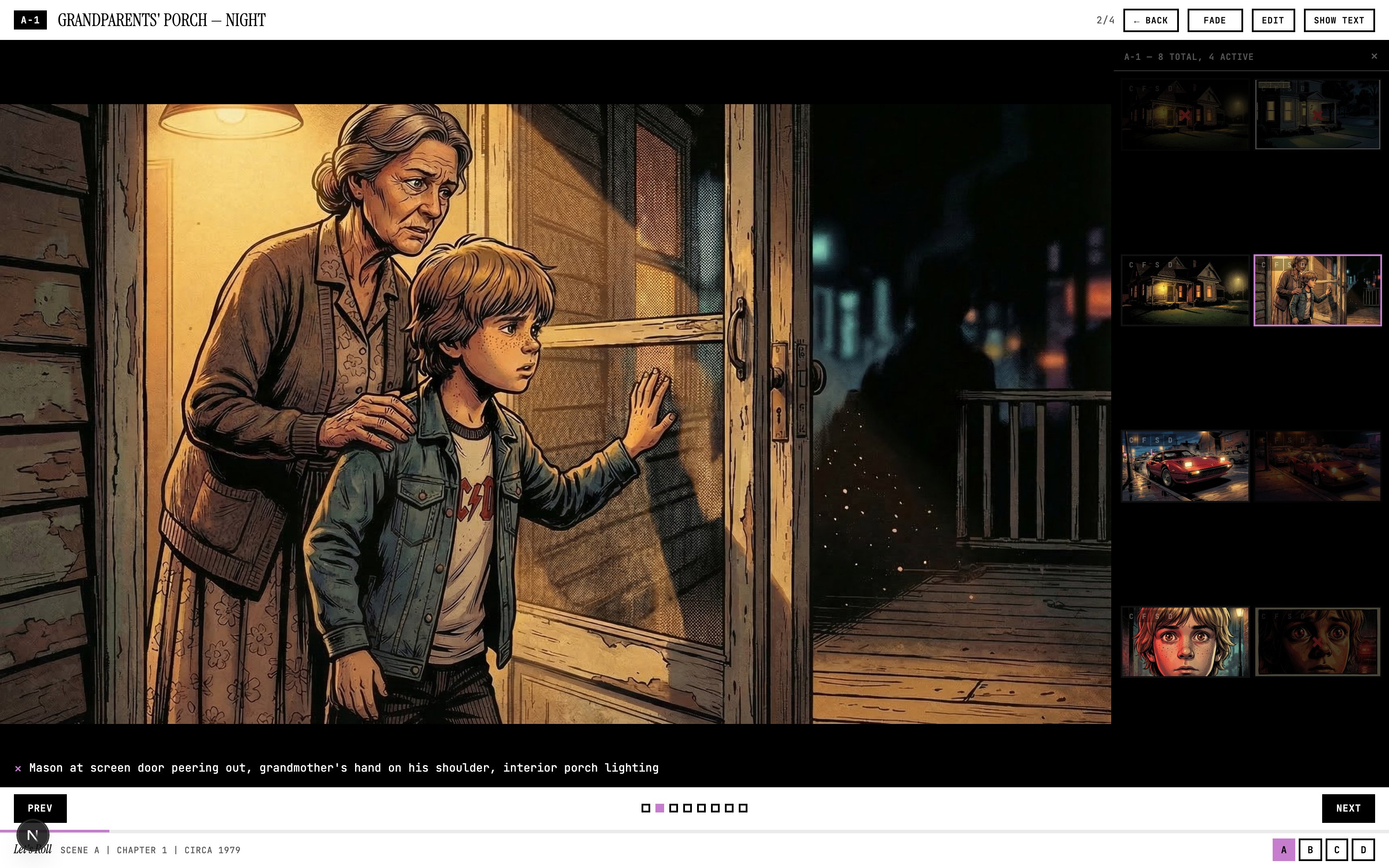
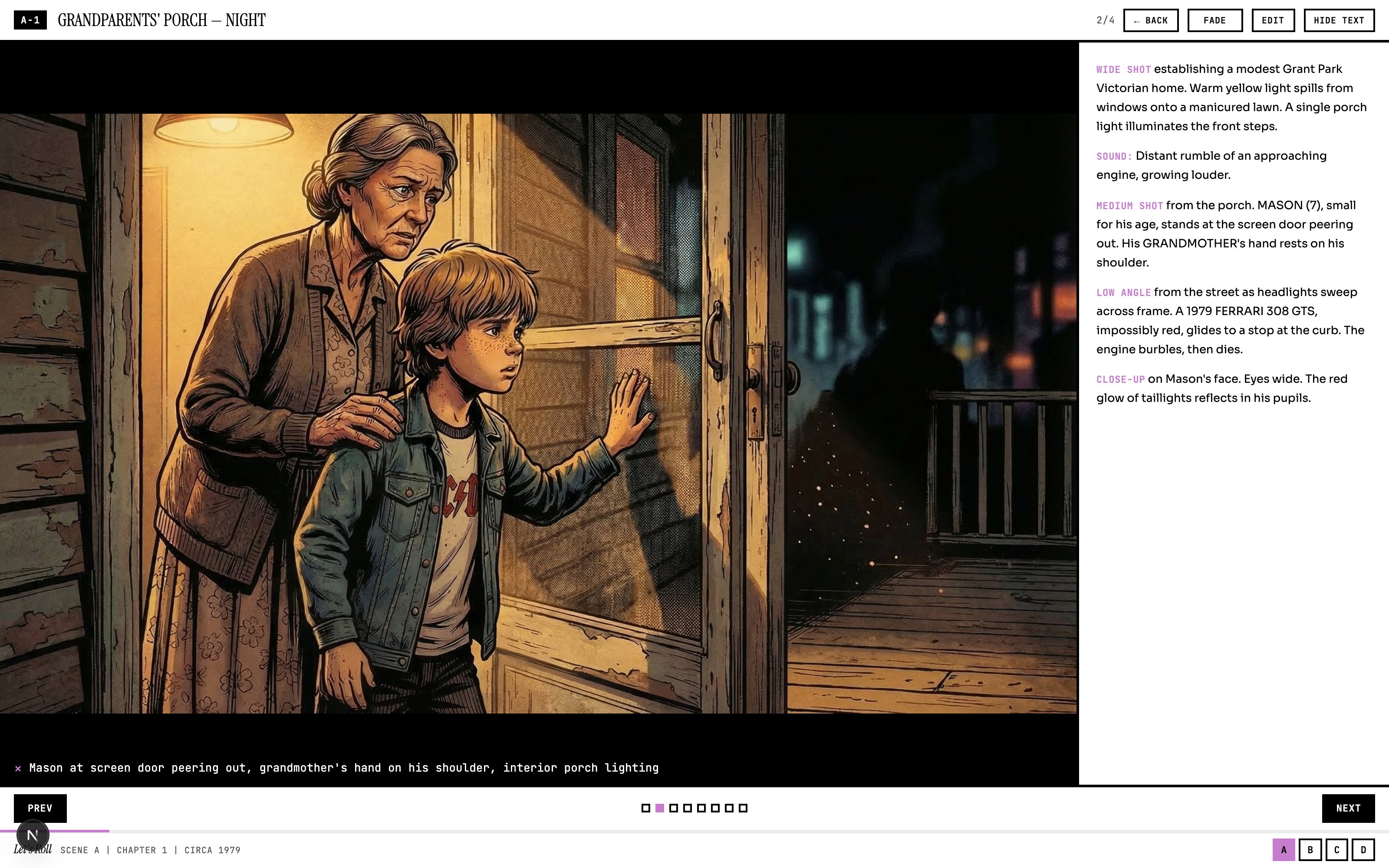
Edits made on the Stage write to the same curation file as Boards — cut a frame during a rehearsal run and it's already cut everywhere.
| Shortcut | Action |
|---|---|
| ← / → | Previous / next moment |
| ↑ / ↓ | Previous / next scene |
| Space | Next moment |
| F | Fullscreen |
| T | Script text panel |
| E | Filmstrip editor |
Export — the deliverable
Export packages the whole curated project as one zip: a single index.html plus the images. Open it anywhere — no app, no server, no network — and you get both faces of the project under a header toggle: a BOARDS view (the zoomable grid) and a STAGE view (the full-screen show, transitions and keyboard nav intact). Check Include script text sidebar to ship the screenplay prose along with it.
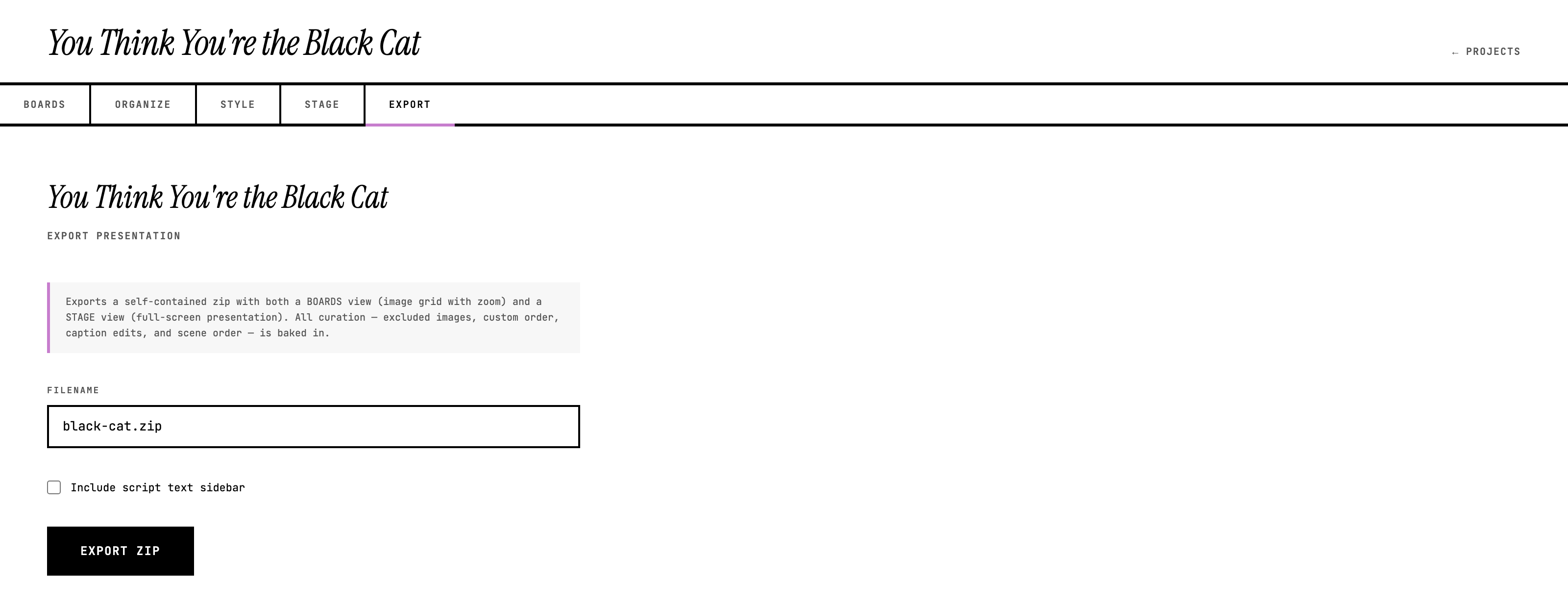
Every editorial decision — cuts, custom order, relocated images, rewritten captions, scene order, transitions — and the active theme, fonts included, are baked into the file. What you rehearsed on the Stage is exactly what your reader opens.
Fine print
A project on disk is four things: manifest.json (the structure — never modified by the app), curation.json (every edit you've made), theme.json (the look), and an images/ folder. Removing a project from the home shelf hides it without deleting anything. And since curation is a separate layer, there is no destructive edit anywhere in the app — the imported source stays pristine under all of it.
Where it fits
Cinezine closes the loop the Script Panel opens: prose becomes a screenplay, the screenplay becomes a graph, the graph becomes frames, frames become pages — and Cinezine is where the frames get cut, sequenced, and shown. Generate in FlowBoard; present in Cinezine.