The Script Panel
Screenplays in, node graphs out. The Script Panel turns a formatted markdown screenplay into a working graph — and keeps the text beside the canvas while you build, so the story and the graph stay in the same view.
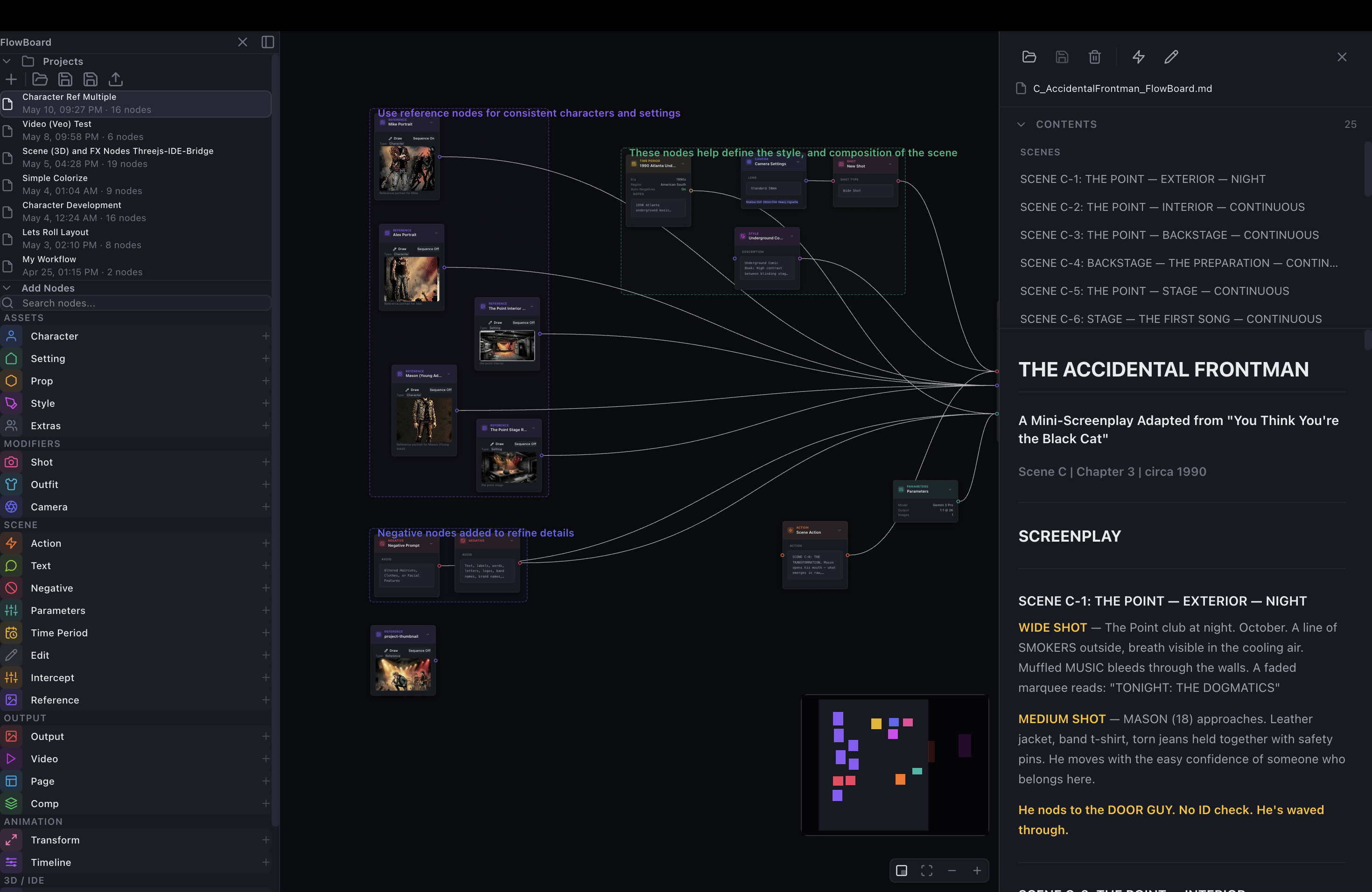
Opening a script
Toggle the panel with ⌘\ (it collapses to a slim tab on the right edge). Click the folder icon to open any markdown file; from then on, ⌘S saves your edits straight back to that file. An amber dot beside the filename means unsaved changes, and the trash icon closes the script — with a warning if you'd lose anything.
One browser rule to know: for security, the file connection doesn't survive a page refresh — after one, re-open the file yourself to reconnect it. Your file is untouched either way.
The screenplay format
The panel reads a lightly structured markdown screenplay:
- Scene headings like
### SCENE A-1: GRANDPARENTS' PORCH — NIGHTbecome navigable scenes. - Reference sections — headings named Characters, Settings, Props, Extras, Style, Camera, Time Period, Shots, Actions — carry tables the graph is built from:
Name | Descriptionfor the cast and world,Property | Valuefor camera and era, and the SHOTS table's IDs (A1-1,A1-2…) which define the shot list and its scenes.
You can write this by hand, but you don't have to: the narrative-to-flowboard skill turns any prose into a valid screenplay file, format guaranteed.
Reading and navigating
In preview mode the screenplay renders styled and readable, with a collapsible Contents outline up top — scenes in one group, reference sections in the other. Click any entry to jump there.
Hover a reference section in the outline and a ⊕ appears: one click creates that section's nodes on the canvas — every character in the table, say, each with a reference stub ready for a portrait. It's Build Graph à la carte.
Highlight text into nodes
The panel's best trick. Select any passage in the preview, then click a node type's + in the sidebar: the node lands on the canvas with your selection pasted in. A selection shaped like **Ray** — club manager of The Point even splits into name and description automatically.
Bound passages get a dotted underline in the node type's color, so the script shows at a glance what's already been claimed. The underlines are reading aids rather than live links — if you edit the script, re-select to re-bind — but as a way to deconstruct a story chapter into assets, highlighting beats typing every time.
Build Graph
The lightning bolt builds the whole thing: every table row becomes a node, every shot becomes a wired shot → action → output lane, camera and era wire into each output's config, and the canvas lays it out in clean, readable lanes. If the screenplay spans multiple scenes, a scene picker appears first — build everything, or toggle just the scenes you're working on. (Your cast, settings, and style always build; the filter applies to shots.)
Editing in place
The pencil icon flips the preview into a raw markdown editor; the eye flips back, applying your changes. Quick fixes — a reworded shot description, a new table row — never require leaving the app. Remember ⌘S writes it back to the file on disk.
Where it fits
The Script Panel is the hinge of the full pipeline: prose becomes a screenplay (by hand or via the skills), the screenplay becomes a graph, the graph becomes frames, and frames become pages. For keeping the cast consistent across everything the graph generates, see References & consistency.