The dashboard
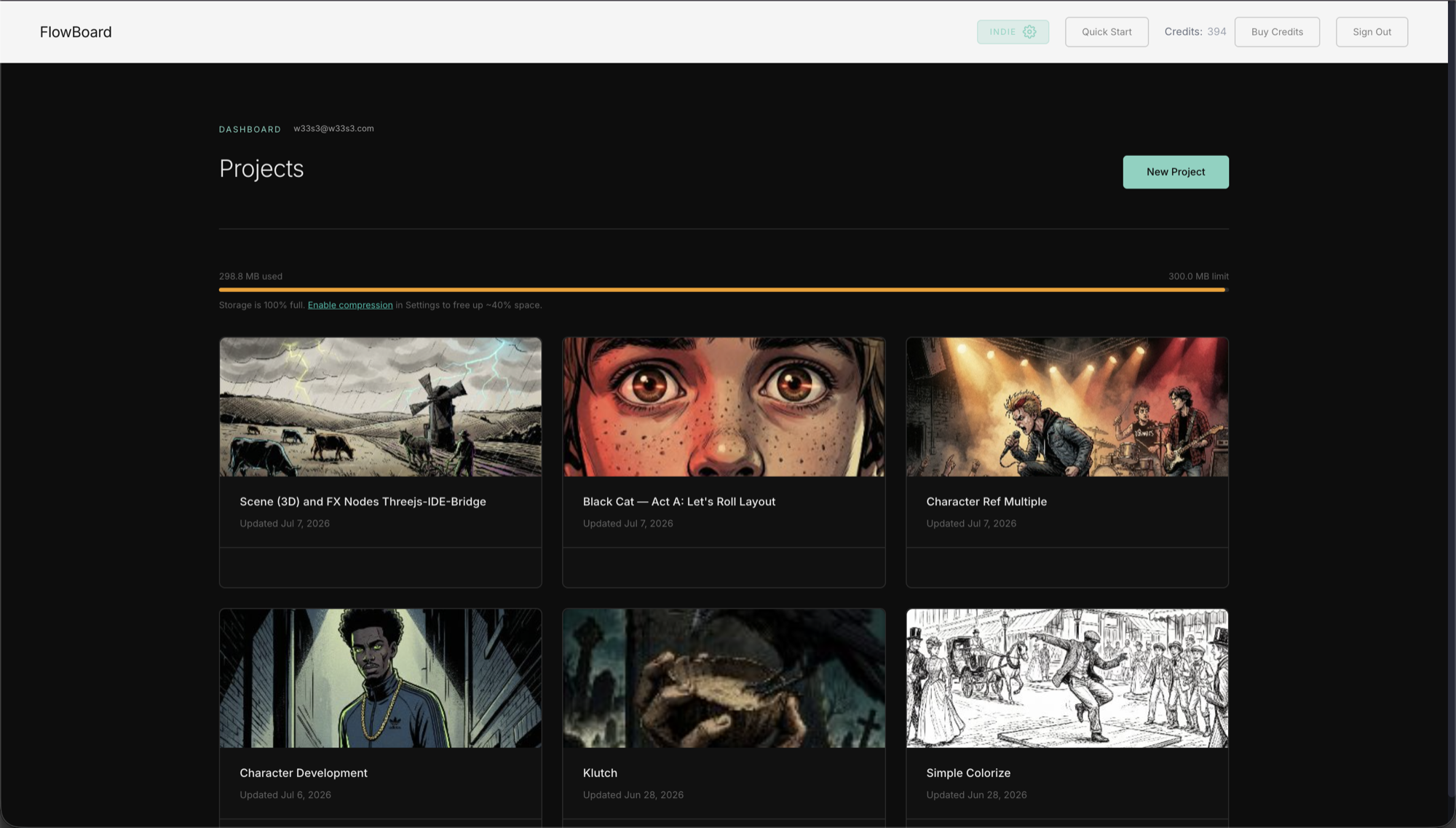
Every session starts here. The dashboard is your project shelf: one card per project, each wearing a thumbnail of its most recent work. Click a card and you're in the editor.
Projects
New Project asks for a name and drops you straight onto a fresh canvas. Back on the dashboard, everything about a card is direct: click the title to rename it in place, click anywhere else to open it, and hover to reveal Delete — which asks for confirmation and means it; deletion is permanent, so export a .json copy first if there's any doubt.
The big page title is yours too — click "Projects" and type to rename your whole workspace ("Season One", "Client Work"). It's saved to your account, so it greets you by that name on every device.
The list keeps itself current: come back to the tab after working on another device and it quietly re-fetches, so a project saved on your laptop shows up on the studio machine without a manual refresh.
Storage
The bar under the header tracks your cloud storage against your plan's allowance. It stays out of the way until you pass 80%, then turns amber and points you at the fix: image compression in Settings, which typically frees around 40% with no visible quality loss on storyboard work.
The banner
Your plan badge sits in the top-right — click it to jump to account settings. Beside it: your live credit balance, the Buy Credits button, Quick Start (a guided first-project tour — a lighter companion to this manual's Getting Started), and Sign Out. Accounts still in their trial period see a days-remaining badge and a project-count limit here instead; as a subscriber, you'll never meet either.
Credits
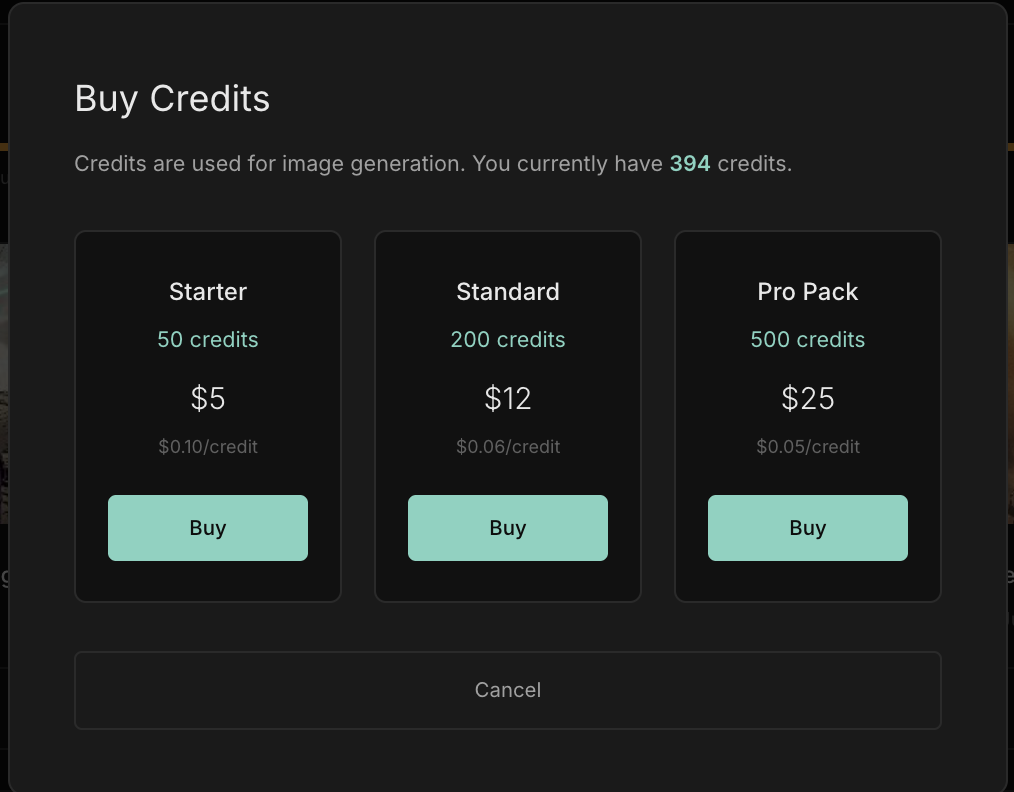
The balance in the banner is what generation draws on — each Output's Generate button shows its cost before you spend anything. When it runs low, Buy Credits opens the pack picker; for now the dashboard is the one place credits are sold:
Where it fits
The dashboard is the front door; everything else in this guide happens through it. Open a project and pick up with Getting Started or the Script Panel.